Computer Printer Types and Everyday Uses
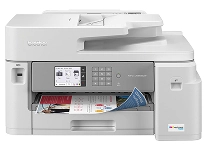
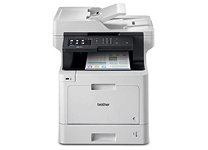
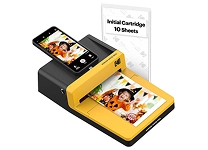
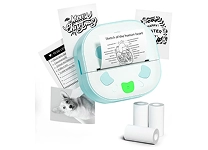
Computer printers turn digital documents, images, and designs into physical copies, with different technologies suited to different tasks. Inkjet printers spray tiny droplets of ink onto paper, making them a versatile choice for text, colour graphics, and photo printing. Laser printers use toner and heat to create sharp text efficiently, which can suit frequent document printing. All-in-one or multifunction printers combine printing with scanning and copying, and some also include fax capabilities. Photo printers are designed to produce detailed colour images, while label and portable printers address more specialized needs. For occasional home use, a compact inkjet may offer flexibility; for a busy workspace, a laser model may better match document volume. Ubuy helps shoppers discover international printer options across these product types.
- Inkjet, laser, photo, and specialty models
- Multifunction printing, scanning, and copying
- Options for home, office, and creative use
Print Technology, Quality, and Speed
Print quality depends on the printer's technology, resolution, paper handling, and intended output. Resolution is often expressed in dots per inch (DPI); a higher figure can support finer detail, though it is only one factor in image quality. Inkjet models can deliver smooth colour transitions for photos and graphics, while laser printers commonly produce crisp text and consistent results across document batches. Compare rated print speed in pages per minute (PPM), remembering that colour pages, high-quality settings, and complex graphics can take longer than standard text. Look for automatic duplex printing if you want to print on both sides of a sheet without manually turning it over. For photography, consider borderless printing, supported photo sizes, and colour controls. Match performance claims to your typical workload rather than choosing by a single specification.
- Compare DPI alongside real-world output needs
- Check colour and black-and-white PPM
- Consider automatic duplex and borderless printing
Ink, Toner, Paper, and Running Costs
Supplies affect both print results and the ongoing cost of owning a computer printer. Inkjet models use cartridges or refillable ink tanks, while laser printers rely on toner cartridges; some laser units also use a separate drum. Check cartridge compatibility, page-yield estimates, and whether the printer accepts standard or high-capacity supplies before buying. A refillable tank can be useful for regular colour printing, whereas a cartridge model may suit lighter or less predictable use. Paper choice matters too: plain paper works for everyday documents, while photo, matte, glossy, label, and heavier stocks need compatible feed paths and supported sizes. Review the maximum paper weight and tray capacity for your projects. When browsing Ubuy, compare printer specifications with the supplies you expect to use, so the model fits your preferred printing routine.
- Check cartridge, tank, toner, and drum requirements
- Match paper type and size to supported media
- Compare yield estimates with expected print volume
Connectivity, Software, and Device Compatibility
A printer should connect reliably to the computers and mobile devices used for printing. USB offers a straightforward direct connection, while Wi-Fi enables printing from multiple devices on a shared network; Ethernet can be useful for a wired office setup. Many models support wireless printing services or manufacturer apps, but features vary by printer, operating system, and device. Check compatibility with Windows, macOS, ChromeOS, or the mobile platforms you use, and confirm whether drivers or a companion app are required. Wi-Fi Direct can allow a device to connect to a printer without a conventional network, while cloud and mobile printing options may depend on internet access and account setup. Ubuy listings can help shoppers compare connectivity features across international products, but it is worth verifying the exact model number and software requirements before purchase.
- Compare USB, Wi-Fi, Ethernet, and Wi-Fi Direct
- Confirm operating-system and mobile-device support
- Review driver, app, and network requirements
Useful Features, Maintenance, and Troubleshooting
Convenience features can make routine printing and document handling easier. An automatic document feeder (ADF) helps scan or copy multi-page documents, while a touchscreen can simplify settings and job management. Separate paper trays, memory-card slots, and automatic duplexing may be valuable for particular workflows. Maintenance needs vary: inkjet users may need to run printhead cleaning when output shows gaps, while laser users should follow guidance for replacing toner or other service components. Keep paper dry and properly aligned, use supplies recommended for the specific model, and update printer software when appropriate. If a job stalls, check the connection, paper path, ink or toner level, and print queue before changing advanced settings. Ubuy provides a place to explore printers with different feature sets; consider which functions you will use regularly rather than paying attention to extras alone.
- Look for an ADF, touchscreen, and useful trays
- Follow model-specific cleaning and supply guidance
- Check connections, paper, and print queues first
Select the Right computer printers
Start by identifying what you print most: text documents, schoolwork, business forms, photographs, labels, or a mix. Estimate your usual monthly volume and choose inkjet, laser, photo, or multifunction equipment accordingly. Then compare colour capability, print speed, resolution, duplexing, paper sizes, and the presence of scanning or copying features. Confirm that the printer works with your devices and network, and review the ongoing cost and availability of compatible ink, toner, or paper. Consider physical dimensions, tray capacity, noise, and whether a compact unit or a more capable office printer better suits the available space. For international product discovery, Ubuy can help you explore different printer configurations and features. Before deciding, compare the exact model specifications against your workflow, compatibility needs, and preferred supplies to make a confident, practical choice.
- Prioritize your typical documents and print volume
- Check compatibility, dimensions, and supply costs
- Compare exact model features before choosing